

COMPLETE GUIDE PROJECTQ · 8 STAGES
Troubleshooting and contacting support
Checks for registration, payment, download, installation and daily work. Start with the stage where the error occurred. Here - what to send support and how is remote assistance with your consent.
PROJECTQ · HOW IT WORKS
A system for your needs- 01Your device↓
- 02Model-specific adaptation↓
- 03ProjectQ
Follow your current stage. If the wizard’s model-specific instructions differ, follow your exact installation and contact support.
Determine the stage and save the message
Write down what you did: create a request, confirm a projector, pay, download a file, install a system or run an application. Take a photo of the entire screen with the error and the time of its occurrence.
Do not make a factory reset just because of a download or connection error. It deletes data and can complicate recovery. Do not pay a second time if the first payment has already been charged.
Check the power, real Internet access, free space and correct date/time on the projector. In the absence of installation or download, you can reopen the page; with an active wizard, first wait for its result, do not interrupt the process.
Do not send passwords from cinemas, Yandex account and banking applications to anyone. Send the personal link of the application only to official support if necessary.
Application, QR-code or confirmation will not be opened
If the form is not sent, check the mandatory fields and consents. The phone number and model must be indicated correctly. When a network error occurs, save text and reopen the page.
If QR is not recognised, use your phone’s standard camera and check the focus and image brightness. Make sure the registration app is open and the projector is online. Compare the details on your phone with the projector screen before confirming.
If the device is determined by another model, the code did not match or the verification is not completed for a long time, do not confirm incorrect data. Support needs the exact name of the model and the recorder's message.
If the personal link is lost, inform the official support of the phone from the application, model and order number if available. A new application does not replace the restoration of access to the old one.
Restoring Access Through Support
Payment is debited, but the installer is not yet available
Check the status of your application after updating the page. Do not press the payment again if there is a charge or a bank check. Save the time, amount and application number.
The term of the installer after confirmation of compatibility and payment is no more than 10 minutes. If the deadline has passed, inform the support of the application number and attach the check personally. Do not post payment documents on the forum.
If payment is refused, focus on the message of the bank and the payment form. Do not give support the full card number, security code or bank disposable codes.
If a new payment is offered after the projector is reset, first check that you are using the correct free recovery scenario.
Recovery after separately paid translation into English
Recovery of the projector from the store
APK not downloaded, visible or installed
Check the Internet access on the device where you download the file. Use the current personal page or official recovery page. If the download is interrupted, download the file again; do not run a defective APK.
For a USB transfer, make sure the drive appears in the built-in file manager and the file has actually been saved to it. Its name must end in .apk. Renaming another file to .apk does not turn it into an installer.
If the system requests permission to install from a selected source, grant permission to the in-house file manager for that file. If there is an error in compatibility, signature or parsing of the package, save the exact message and contact for support. Do not install someone else’s version or disable unknown security features.
If the wizard starts but does not finish, note the last completed step and photograph the current screen. Continue only by following an available wizard prompt or the team’s instructions.
ProjectQ is set, but Home, language or remote works differently
If Home opens the previous screen, check the available choice of home app in the wizard or model settings and assign ProjectQ if provided. After the installation is complete, perform a normal restart and check again.
If the language of the launcher has changed, and a separate item has remained the same, record the name and photo of this screen. The language of third-party applications often changes within them; the list of supported system partitions depends on the model adaptation.
If the remote button does not work, first check the charge, the remote connection and this button in the standard interface. Tell the projector and remote model which button does not work and where.
After updating the manufacturer's firmware, report its version. Do not roll back the firmware with an unknown file. The team will check which adaptation fits the current system.
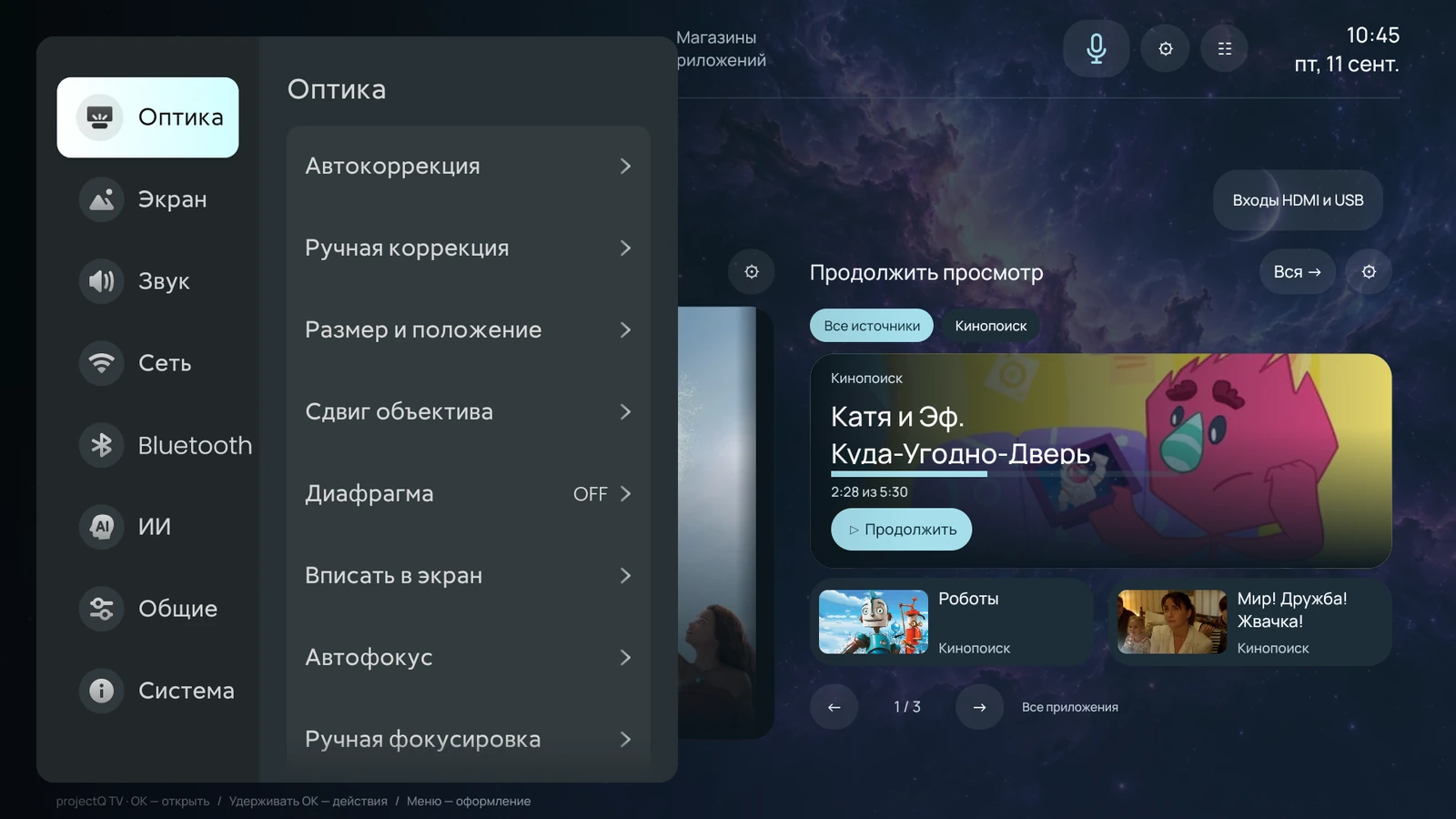
The app, story, voice, or home management doesn’t work
For the application, check the Internet, your own login and subscription service. Open it directly. If the playback does not work inside the application, provide its name, version and specific content. Updates and availability of the service are determined by its developer.
For History and Continue View, check if the integration of this application is supported, if the login is made, and if the viewing has been made. Not all apps transmit history the same way; one service’s settings don’t apply to others.
For voice control, check the selected recognition method, microphone and required permissions. Online mode needs internet access. Try a simple request in the ProjectQ assistant and save the result. If the microphone fails only in one app, mention that separately.
To manage the house through Yandex, check the connection of your account and the presence of compatible devices in it. Do not pass passwords; re-enter yourself on the official screen.
Check the composition of the system's capabilities
Send one clear message
Specify in one message:
- the exact projector model and the factory firmware version, if known;
- the order number or purchase information in ProjectQ;
- the device identifier from the registration app or support screen, if displayed;
- What they wanted to do, what they did and what happened.
- full text of the error and screen photo;
- What checks have been made and when the problem occurred.
When asking about payment, attach a check in a personal appeal. If you have a problem after reset, specify whether you ordered translation into English separately or bought a ready-made projector from us.
Use the official contacts of the page below. The closed forum is suitable for discussing the operation; send order documents and personal links personally to support.
Official contacts and support channels
If necessary, coordinate a remote diagnosis.
The team can offer remote diagnosis and debugging for a supported scenario. This is service assistance in finding the cause of the error, not a mandatory step of normal operation.
Agree on the time and follow the tips that the specialist will give. The connection is done with your consent; keep the projector on and connected to the network at the agreed time. Do not run a parallel reset, manufacturer update or other installation.
After helping, check with a specialist the problem function and the usual start from the remote. If you need re-installation or additional actions, keep the recommendation.
Do not follow service commands found on the Internet and do not give unauthorized access to the device. For each projector, actions are selected taking into account the model and firmware.
DONE
Expected result
The problem was fixed by secure checks or support received full treatment and agreed on the next step. If necessary, remote diagnosis is available with your consent.
If it didn’t work
If the check does not help, send an appeal through official contacts. Do not repeat the payment, do not change the model and do not reset the projector without the recommendation of the command.
Frequently asked questions
The setup wizard stopped at one of the steps. What should I do?
Read the step’s name and message. Check the internet connection, follow the hint and confirm any prompt on the projector. Retry this step using its own button. If the error remains, send support the model, step name and error message.
GuidesVideo has sound but no picture. What should I check?
Check whether the projector menu appears and another file plays. Choose a compatible player and format using your model’s guide. Do not try random calibrations or resets. Contact support if the problem remains.
GuidesCan you help remotely if something isn’t working?
Yes, ProjectQ offers remote diagnostics. Contact support, provide the projector identifier and describe the issue. The team will agree the connection with you and explain any actions on the projector. Internet is required; available actions depend on the model and installed version.
GuidesWhy do you need the projector’s identifier?
This is a convenient reference number for support. It helps the team find your installation and investigate an error or recovery request. You can find it on the service screen provided by your ProjectQ version. Do not post your personal account link in public discussions.
GuidesVideo for this guide
This guide contains the full procedure. A demonstration video will also be available here.
VK VideoYouTube