

COMPLETE GUIDE PROJECTQ · 7 STAGES
How to restore English localization after a reset without paying again
For those who ordered and paid for the translation into English of their projector. Factory reset removes the installed system, but does not cancel the acquired right: on the same device ProjectQ TV can be installed again free of charge. All actions are below.
PROJECTQ · HOW IT WORKS
Stays yours.- 01Buying for a device↓
- 02Updates ProjectQ↓
- 03Recovery after a factory reset
Follow your current stage. If the wizard’s model-specific instructions differ, follow your exact installation and contact support.
Choose the Right Recovery Method
This instruction applies to the projector that you have localized into English through your application ProjectQ. If you have purchased an already prepared projector in our store, use a separate instruction: for such devices there is a recovery recorder without a separate paid order.
Make sure you have the same physical projector. Payment for one device does not mean automatic transfer to another. If the projector is replaced under warranty, contact the replacement documents in support.
If the reset has not yet been made, save the personal link, check and export of the design outside the projector. After the reset, local application accounts and their data can be deleted.
Restoration of the projector from the store ProjectQ
Connect the projector and open the previous application
After a reset, complete the projector’s own initial setup and connect it to the internet. Have your phone and a USB drive ready if your model installs APK from it.
On the phone, open the saved personal link of the previous application. Do not start a new paid registration on the purchase page: the already paid right should be restored in the existing scenario.
If the link is lost, contact for support. Provide the phone number used in the order, the model and, if available, the application number or check. Transmit this information personally through official contacts; do not publish a check and a personal link on the forum.
Re-install the recorder on the same projector
Download the registration app offered by your previous request. If an older saved file is no longer suitable or available, request the current one through your personal page or support.
For transfer via USB, copy APK to the storage device, connect it to the projector and open it in the built-in file manager. Allow installation from that source if prompted, then install and open the registration app.
Run the app on the projector itself. The registration app must identify the device after the reset and link the next steps to your existing entitlement.
If a QR confirmation code appears, open it with your phone and compare the information with the projector screen. Do not confirm someone else’s device or select a similar model to bypass an error.
Check eligibility for free installation
Follow the reinstallation process in your request and registration app. A factory reset alone does not require paying again for English localization. If the system asks for another payment, stop and contact support first.
Provide your previous request number, receipt if available and device details from the registration app. After a factory firmware update or parts replacement, an additional model and entitlement check may be needed.
Do not delete the previous application and do not pay “for acceleration”. Support will help you find access and confirm the correct recovery option.
Get the installer and follow the wizard
Download your current personal installer as directed by your request or registration app. Do not use APK for another model or someone else’s installer.
Open the file on the projector, if required – transfer it through USB. Follow all the steps of the wizard, issue the requested permissions and wait for the result. Save food and internet until it is finished.
Choose a language. If necessary, assign ProjectQ to the home screen and perform the proposed restart after installation. Press Home on the remote and check the launch.
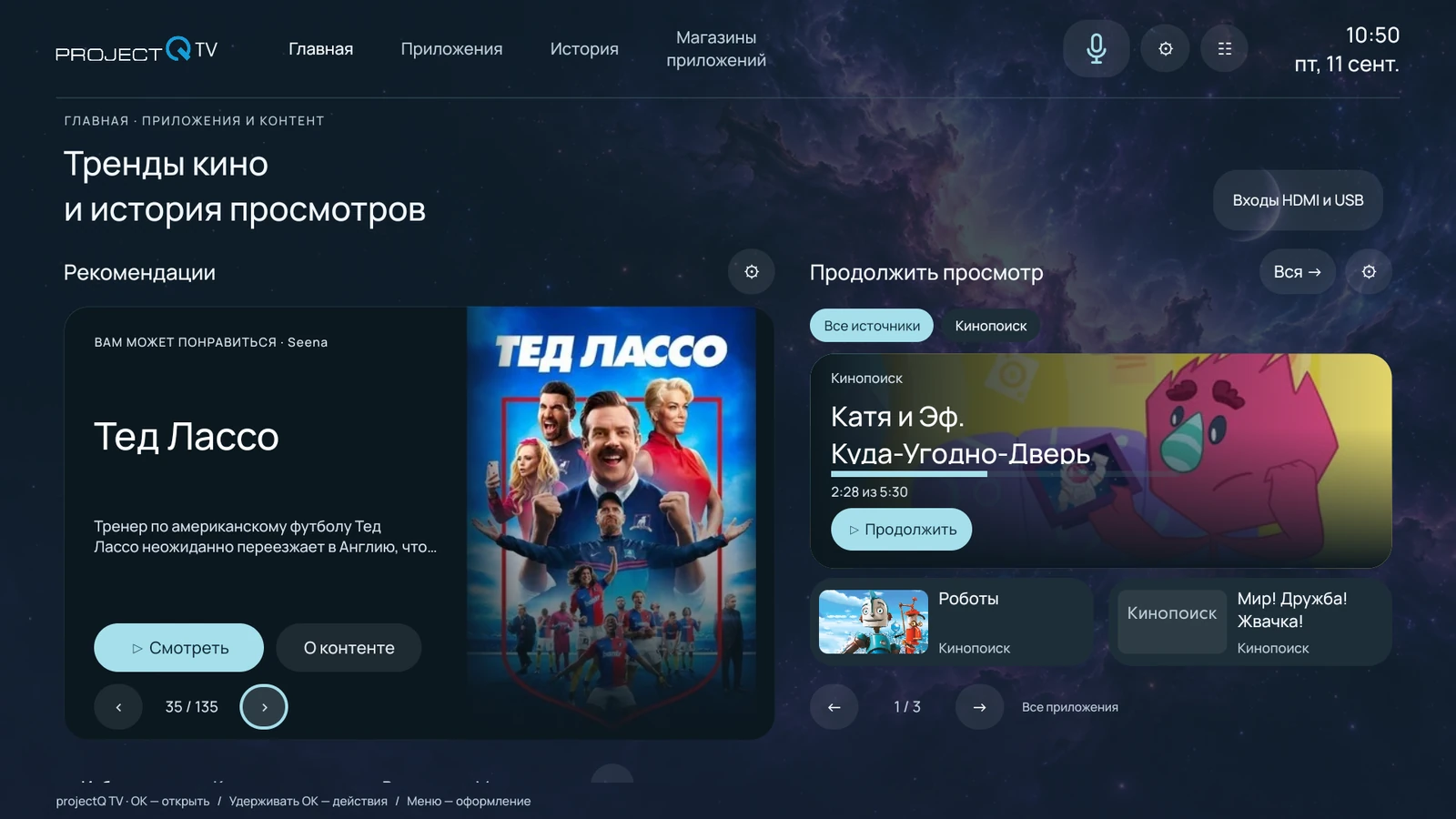
Return your applications and design
Open the store ProjectQ and install the necessary applications. Log in to previous accounts of cinemas and other services. A third-party service subscription is stored with it; a local session after a reset usually requires re-entry.
If you saved an appearance profile beforehand, import it in the ProjectQ settings. Without a backup, choose your theme, colors, tiles and sections again. English localization can be restored free of charge, but it is not an automatic backup of all personal data on the projector.
Check the language of supported system settings, sound, remote and voice assistant. Reconnect your Yandex account if you use home management.
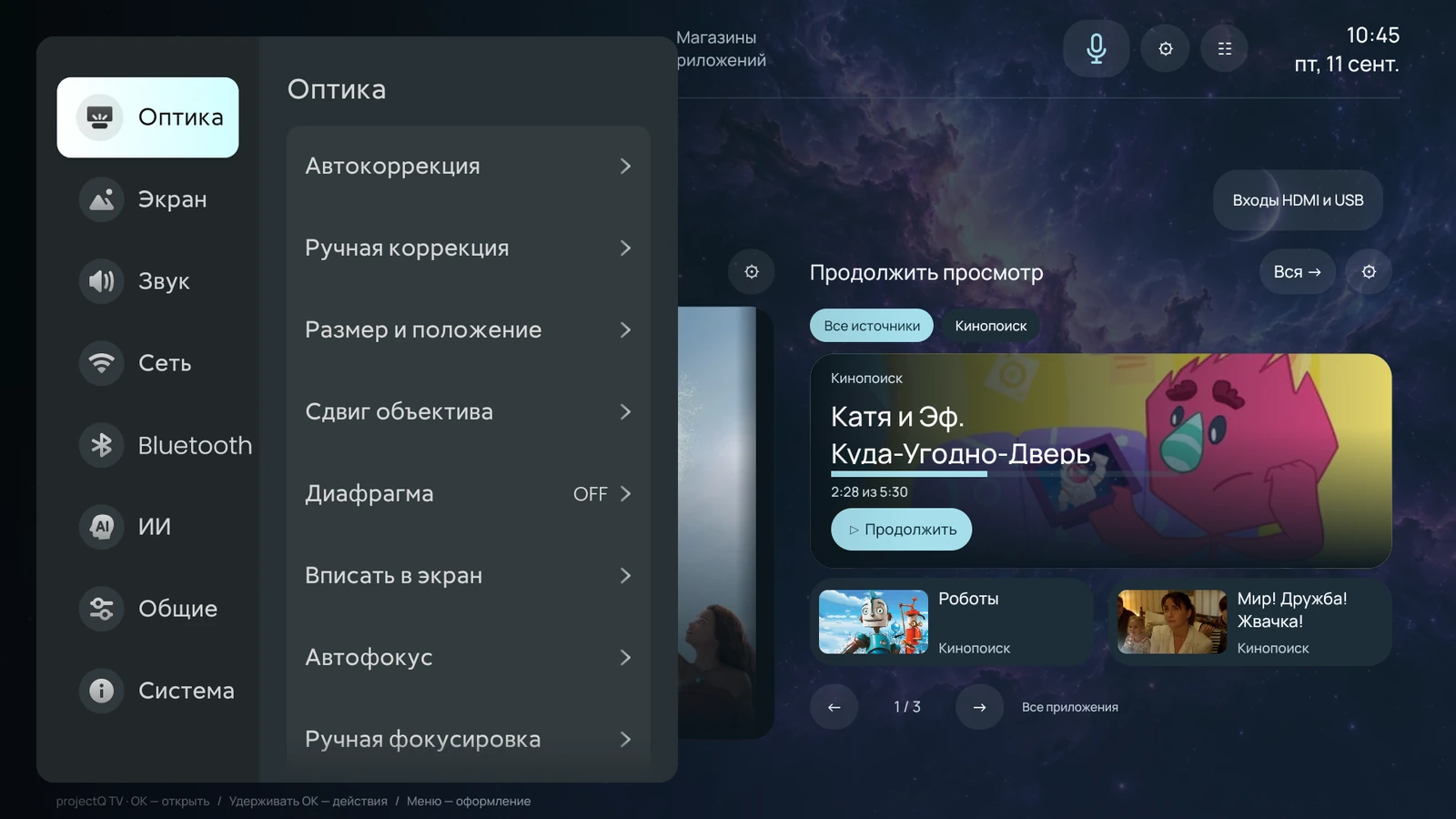
Remind the capabilities and settings of the system
Save access and check the result
Make sure ProjectQ opens after a normal restart. Save your current personal link and important documents outside the projector.
If there is a mistake, do not make another reset without the recommendation of support. Write down the stage, model, version of the factory firmware and the text of the message, attach a photo of the screen. If necessary, the team will offer a remote diagnosis with your consent.
Solving problems and preparing the appeal
DONE
Expected result
ProjectQ TV works again on the same projector. No repeat payment was required. Personal apps and settings were restored manually or from backups saved beforehand.
If it didn’t work
If the previous right is not found or the site offers a new payment, stop and send support data of the previous application and projector. Loss of a link or firmware change is resolved by access verification, not by re-purchase.
Frequently asked questions
Can I restore ProjectQ for free after a factory reset?
Yes. Reinstallation on the same projector is free, with no limit on the number of resets. Open your previous personal link, get the registration app for this device, confirm the projector and follow the recovery wizard. Contact support if you cannot regain access.
GuidesVideo for this guide
This guide contains the full procedure. A demonstration video will also be available here.
VK VideoYouTube