

COMPLETE GUIDE PROJECTQ · 6 STAGES
Bought a projector from ProjectQ and reset it? Restore English localization
A separate, free recovery process for projectors prepared for sale by the ProjectQ team. After a factory reset, download the recovery registration app and run it on your own device. You do not need to buy localization separately or pay again.
PROJECTQ · HOW IT WORKS
Stays yours.- 01Buying for a device↓
- 02Updates ProjectQ↓
- 03Recovery after a factory reset
Follow your current stage. If the wizard’s model-specific instructions differ, follow your exact installation and contact support.
Check that this is a projector from our store.
Use this process if you bought the projector from ProjectQ with our system already installed. The registration app checks the previously prepared device and its recovery entitlement.
If you purchased a projector in another store, and translation into English ordered separately from us, open the recovery instructions through the previous application. If the device is purchased by hand or replaced under warranty, prepare documents about the initial purchase and clarify access to support.
The reset removes applications and settings, so after the system returns, you will need to log in to your accounts. If you have a pre-exported registration profile, it can be imported again.
Restoration of separately ordered translation into English
Connect the projector to the internet and download the registration app
Turn on the projector, perform the initial setup of the manufacturer and connect to the Internet. Check that the network is actually working. Prepare your phone and USB- drive to carry APK if your model requires it.
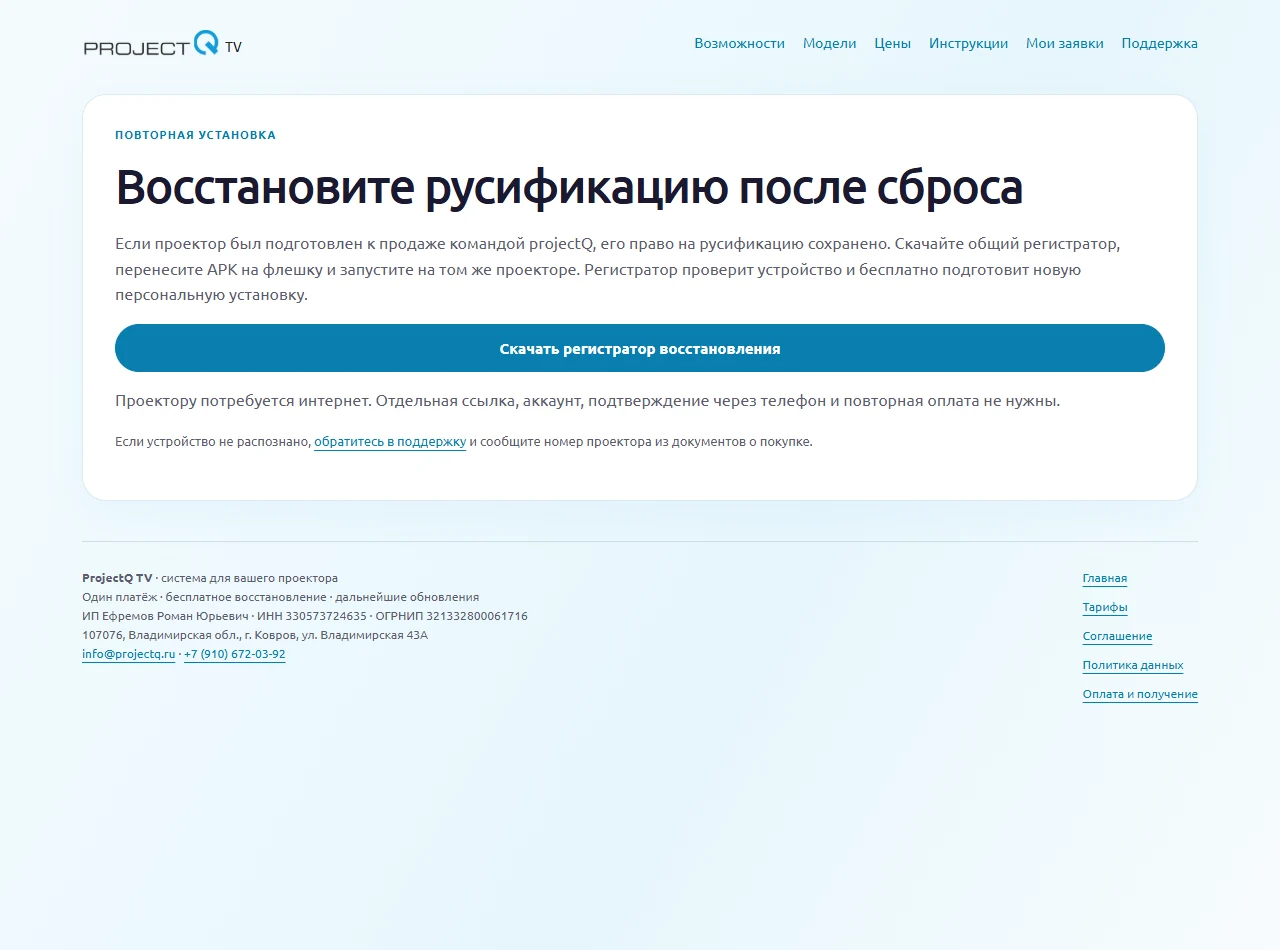
Open the recovery page for projectors purchased from our store and download the recovery registration app. This page is for devices that were already configured by the store, rather than a new paid installation request.
For the standard way to restore a store projector, you do not need to look for a separate personal link, confirm your phone number or pay for translation into English again.
Install the application on the projector itself
Save the downloaded APK to a USB drive, connect it to the projector and open the file in the built-in file manager. If your model supports another installation method offered by the wizard, use that method.
If prompted to allow installation from this source, grant permission to the file manager you are using. Then return to the file, finish installing it and open the registration app.
Do not install APK on your phone: recovery must be verified on the projector itself. Keep the projector connected to the internet. If you close the registration app before it displays a result, reopen it and follow the on-screen message.
If the file is not displayed, check the end of .apk and complete the download. If there is a system warning or error, take a full picture of it.
Wait for inspection and free installer
The registration app will identify the device and check the existing entitlement for the projector configured by our store. Once verification succeeds, follow the instructions to obtain your personal installer.
If the right is found, no separate payment is required. Don’t make a new application for the same projector.
If the app says the device was not found, is incompatible or needs to be checked, contact support. Provide the model, the identifier shown in the registration app and your purchase details from ProjectQ. This is especially important for older purchases, modified factory firmware and warranty replacements.
Do not manually choose someone else’s model and do not download the installer from someone else’s account. Purchase verification helps to return your adaptation.
Assistance if no purchase or right is found
Complete the recovery wizard
Obtain and open the installer using the method offered by the registration app. If you need to transfer the file via USB, install APK using the standard file manager.
Follow the wizard through to the end. Grant the requested permissions and select your language. The system adapts to the supported model; the names of some system screens may differ.
During installation, do not turn off the power and Internet. Restart the device only when the wizard completes the work and offers to do it.
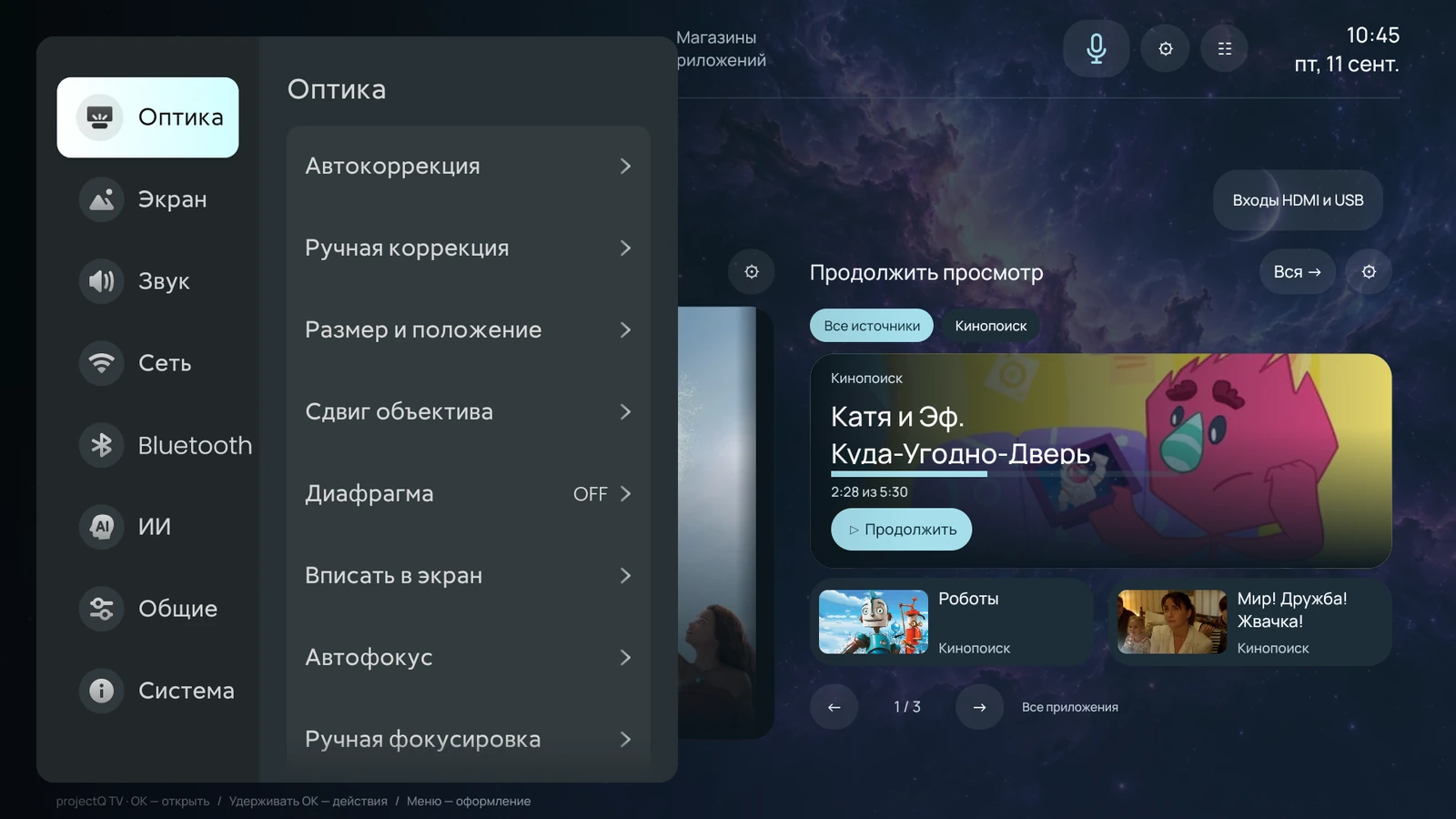
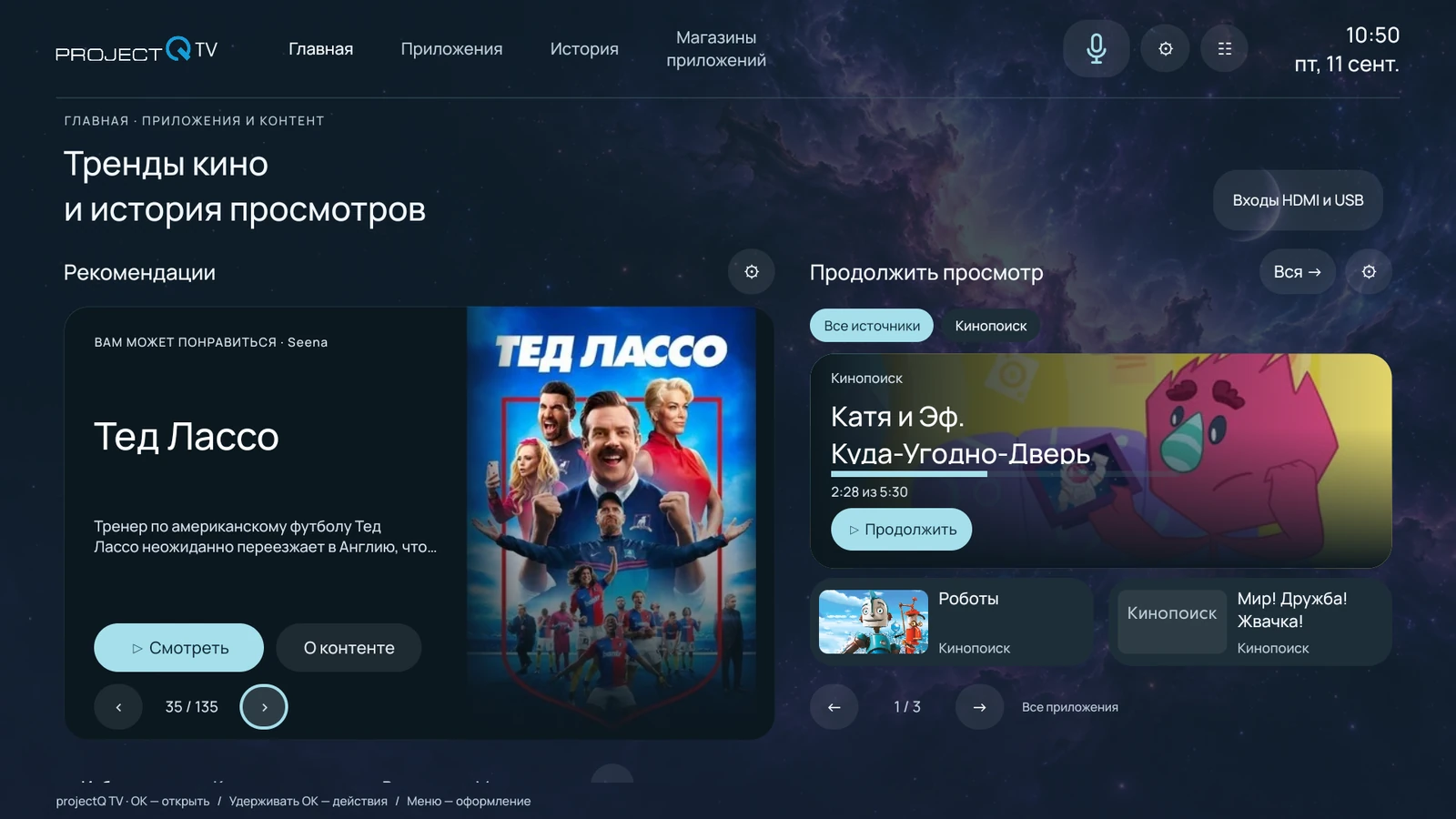
When requesting a home screen assignment, select ProjectQ. Press Home on the remote, check the interface and open the projector settings.
Return browsing and check basic features
Install the desired applications through the store ProjectQ and log in to your accounts. Recovery ProjectQ does not automatically return all deleted local data and logins to third-party services.
Choose a design or import a previously saved profile. Check audio, remote control, system language and playback. If you use the assistant and home management through Yandex, recheck the selected voice mode and account connection.
Save the purchase documents outside the projector. Access to the private forum and support remains part of our customer service; if the invitation is lost, request it through official contacts.
What to do if there is an error
DONE
Expected result
ProjectQ TV is working again on your configured projector, with no repeat payment. Standard recovery requires only the official registration app and an internet connection on the device.
If it didn’t work
If the device is not recognised, send support the model, the message from the registration app and proof of purchase. Do not pay for a new localization until the team has checked your recovery entitlement.
Frequently asked questions
If your case is not described, send support model and photo messages on the screen.
All questions and FAQ searchVideo for this guide
This guide contains the full procedure. A demonstration video will also be available here.
VK VideoYouTube