

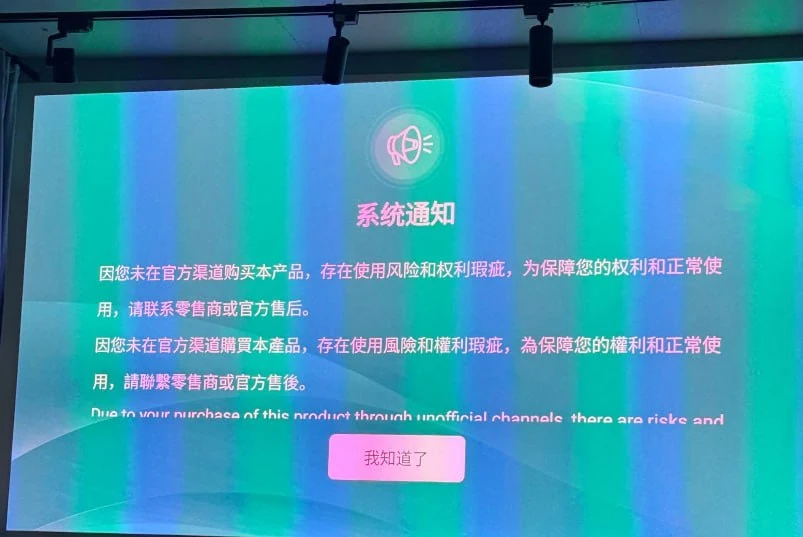
How to recognise the warning
The message says the projector was bought outside official channels and asks you to contact the seller or JMGO support. It can interrupt a film, game or other picture even over HDMI. Dismissing it with “Got it” lets you continue watching, but the warning may return.
How to get the lock removed
Contact the seller or supplier who sold you the projector. Ask them to check your purchase using the serial number and explain how the restriction can be lifted for your unit.
Take a photo of the entire warning while it is on screen.
Take a photo of the serial number (SN) label on the projector or its packaging.
Send both photos to the seller privately. Include the order number and say whether the warning also appears over HDMI.
Message to send your seller
Hello, a system warning about an unofficial purchase keeps appearing on my JMGO N5S Ultra Max. I have attached photos of the warning and the serial number. Could you check my purchase and tell me how to remove the restriction on my projector?
If your seller does not respond, contact JMGO support and include your proof of purchase.
Sign in or register to see forum search results. Discussions are in Russian.
How to turn off the pop-up in ProjectQ TV
The updated ProjectQ TV launcher includes a setting for compatible builds. Open the launcher settings and enable the option labelled “Disable lock” in the Russian interface.
Launcher settings → Disable lock
This option stops the warning described here from popping up again. Ask your seller or JMGO support about the purchase channel and any restriction imposed by the manufacturer.
Frequently asked questions
Why does the warning appear over HDMI?
The projector itself displays the system notice on top of the HDMI picture. Changing the input does not resolve it.
What if I cannot find the Disable lock option?
Check your ProjectQ TV version and ask support if the option is available in your build. Share a photo of the screen and the exact model name so they can identify the warning.